

How To Setup Marketify Blogger Template [Templateify]

Marketify is a Blogger template designed to make your site look clean, modern, and professional. It comes with different layout options like a left sidebar, right sidebar, full-width pages, and more—so you can organize content the way you want.
You have made a good decision by choosing our template. You can check the live demo or download the template through the button below and also Please Read this documentation carefully in order to set up your blog and please note that there’s no support for free users.
You have made a good decision by choosing our template. You can check the live demo or download the template through the button below and also Please Read this documentation carefully in order to set up your blog and please note that there’s no support for free users.
Basic Setup
Video Documentation
You can check this below video to understand the setup process much more easily, just click the below image to watch the video directly on YouTube, or click this link - How To Setup Marketify Blogger Template - Templateify

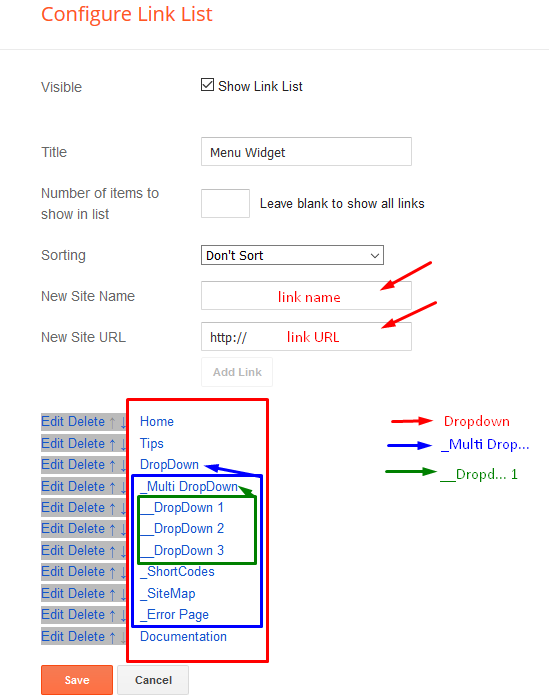
Main Menu/DropDown/Multi DropDown
Access your blog Layout > click Edit icon on Main Menu widget.
Normal Link : Dropdown
Sub Link: _Multi Dropdown (before the link add "_") 1 underscore
Sub Link 2: __Dropdown 1 (before the link add "__") 2 underscore
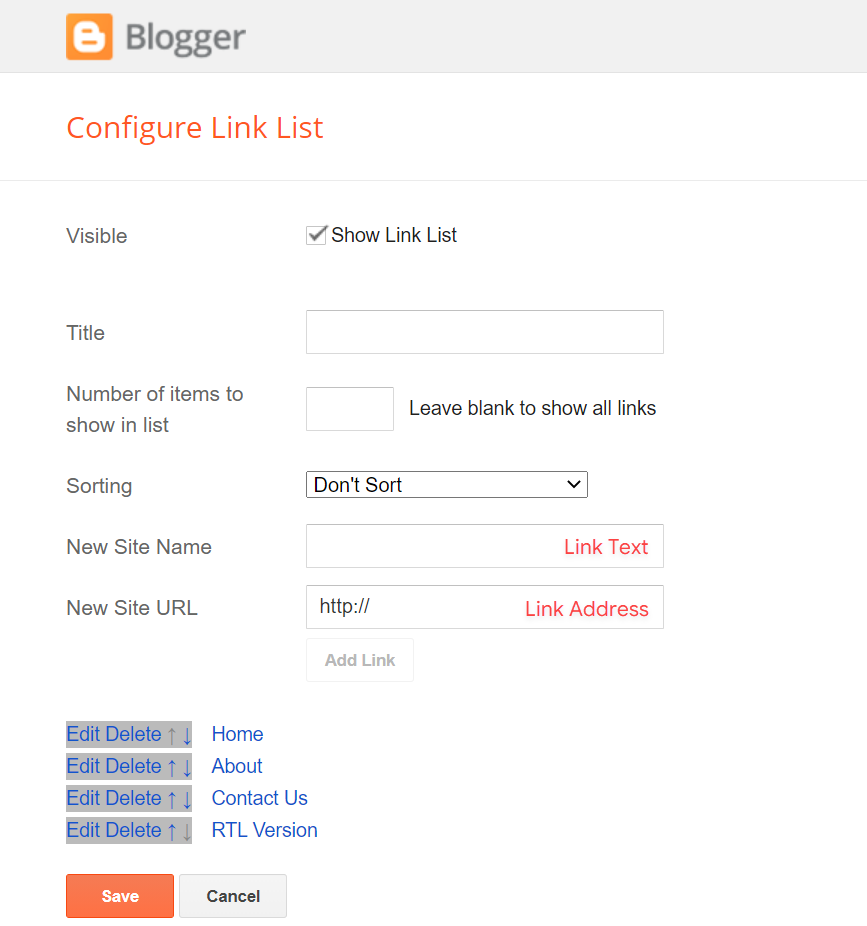
Topbar Menu
Access your blog Layout > and click on the Edit Icon > in the Topbar Menu gadget.
Widget Settings:
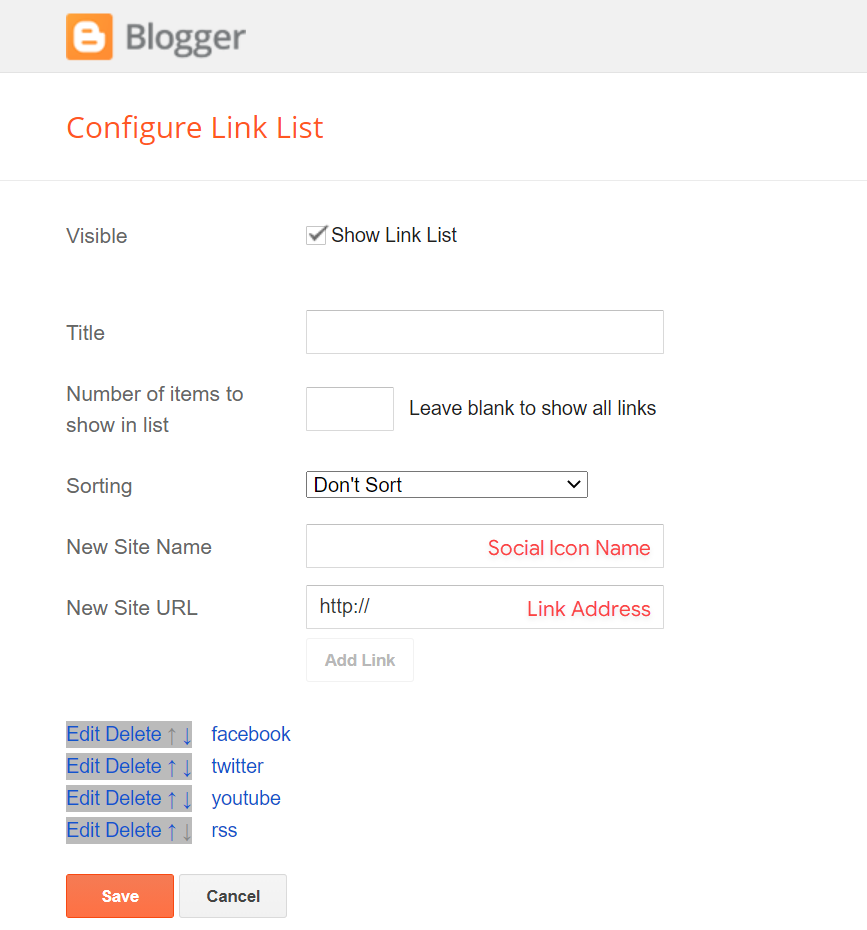
Topbar Icons
Access your blog Layout > and click on the Edit Icon > in the Topbar Icons gadget.
Supported Icons: blogger, apple, amazon, microsoft, facebook, facebook-f, twitter, rss, youtube, skype, stumbleupon, tumblr, vk, stack-overflow, github, linkedin, dribbble, soundcloud, behance, digg, instagram, pinterest, pinterest-p, twitch, steam, delicious, codepen, flipboard, reddit, whatsapp, telegram, messenger, snapchat, email, discord, quora, share, external-link
Shortcode: {getSocial}
INFO: An item with the shortcode must be added for the Gadget to work correctly.
Widget Settings:
Hero Section
Access your blog Layout > and click on the Edit Icon > in the Hero Section gadgets.
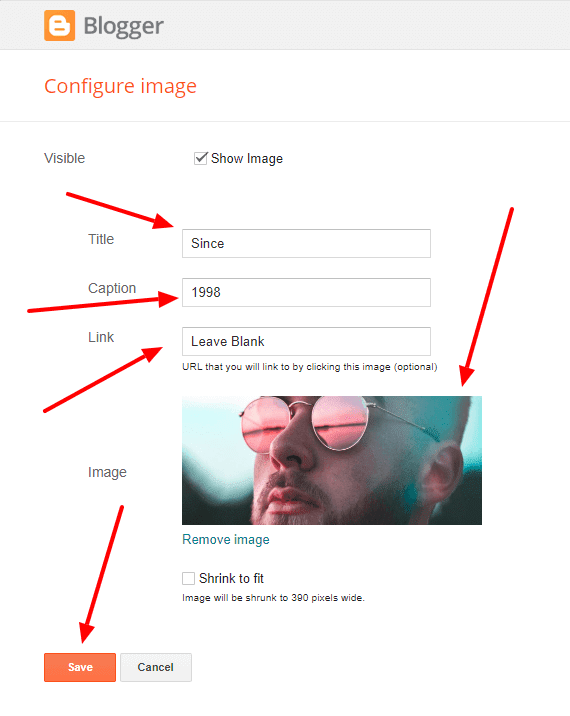
1.1 - Image Gadget
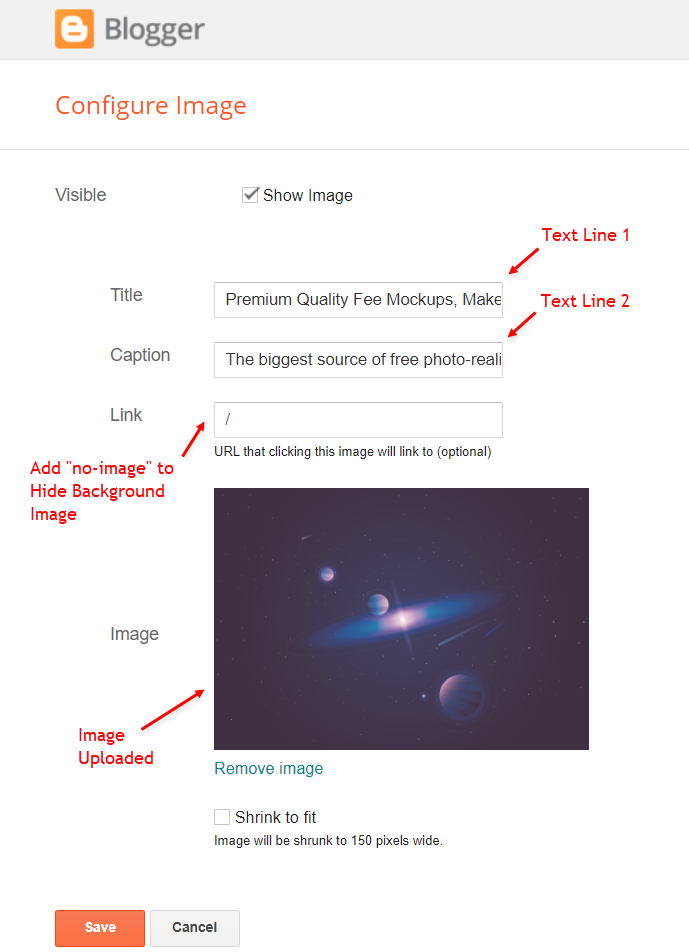
1.2 - Search Gadget
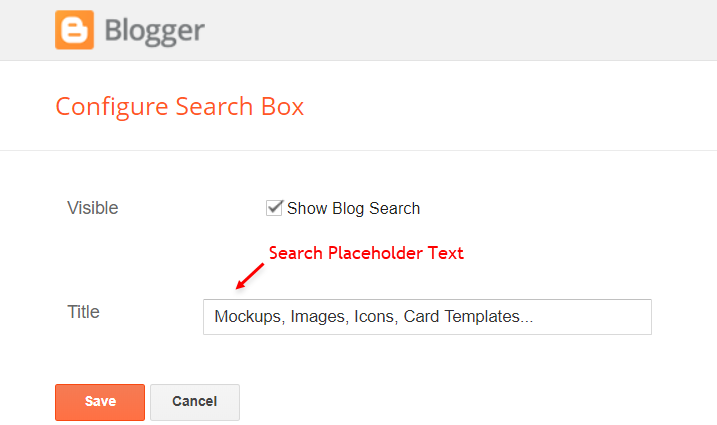
Header ADS & Intro Section
Access your blog Layout > click Edit icon > on Header Ads & Intro Section widget's.
Widget Settings EX:

Product Sections & Editor's Choice
Access your blog Layout > and click on the Add a Gadget > HTML/JavaScript or Popular Posts > in the Product Sections section.
Shortcode: {getPosts} $results={Post Count} $label={Your Label}
Shortcode Example: {getPosts} $results={3} $label={Flat Design}
By HTML/Javascript:

Product Setup Buttons
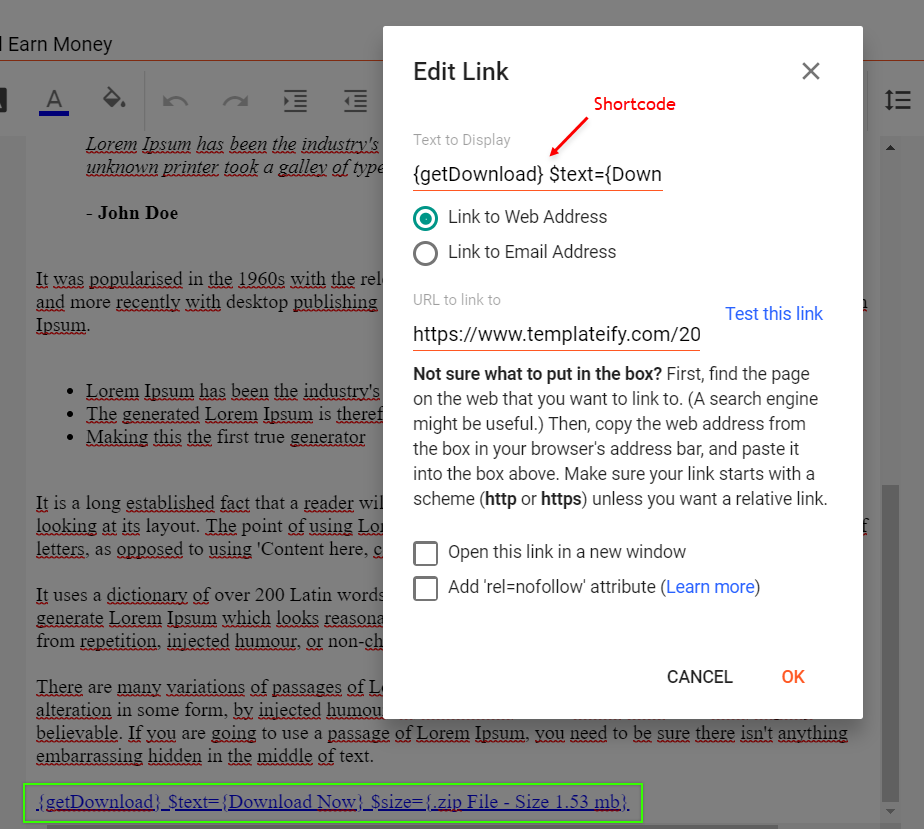
Add a normal link in the desired area within the post, and replace the text with the shortcode below.
Shortcode: {getProduct} $button={Button Text} $price={Product Price} $sale={Product Offer} $free={It is Free?} $icon={Icon Name} $style={Style Options}
Free Attribute: yes or no
Icon Attribute: cart, download, paypal, whatsapp or gift
Style Options: 1, 2 or 3
Style 1 – It will display the Call to Action inside the post and in the sidebar.
Style 2 – Will display the Call to Action only inside the post.
Style 3 – It will display the Call to Action only in the sidebar.
Example:
Main Posts
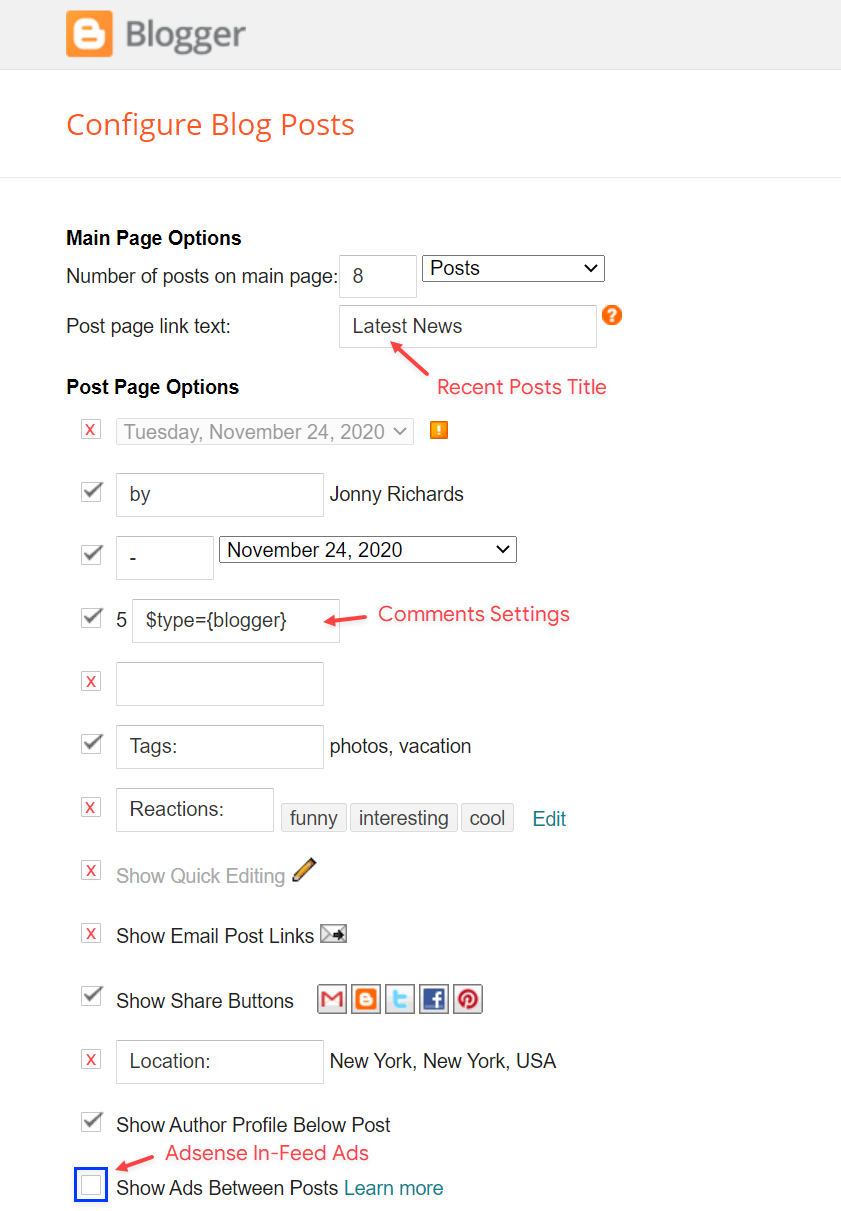
Access your blog Layout > and click on the Edit Icon > in the Main Posts/Blog Posts gadget.
Widget Settings:
Comments Settings:
The comment settings are intuitive like never seen before. The new shortcodes should be added in > Layout > Blog Posts > Comments Field.
Blogger Shortcode: $type={blogger}
Disqus Shortcode: $type={disqus} $shortname={templateify-comments}
Custom Disqus Shortcode: $type={disqus} $shortname={Your Shortname}
Facebook Shortcode: $type={facebook}
Facebook Custom Language: $type={facebook} $lang={Language Code}
Facebook Language Codes: en_US, es_ES, ar_AR, id_ID, th_TH, vi_VN, pt_BR, fr_FR, ru_RU, de_DE, it_IT
For facebook comments to work correctly, you need to configure the facebook SDK.
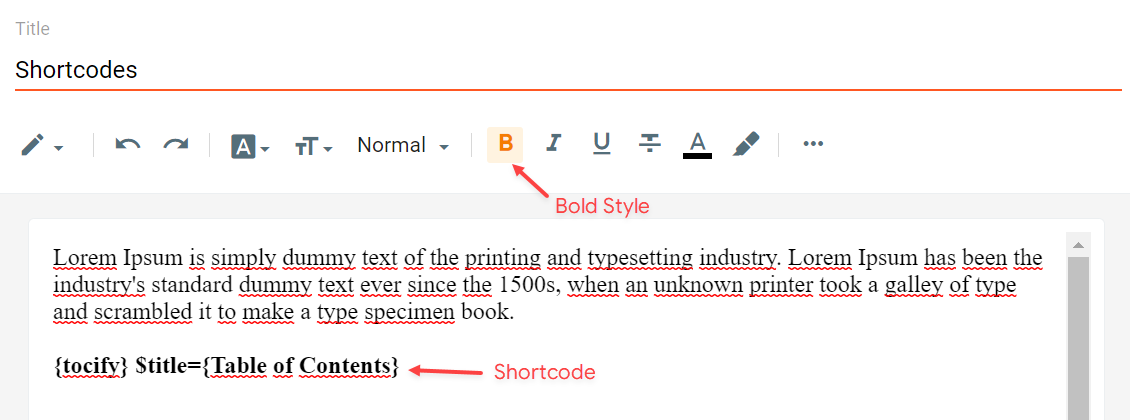
Table of Contents
This function is available for posts and pages and can be added easily via shortcode.
Shortcode: {tocify} $title={Table of Contents}
NOTE: After adding a Shortcode apply the Bold style.
Example:
In-Article ADS on "Post Page"
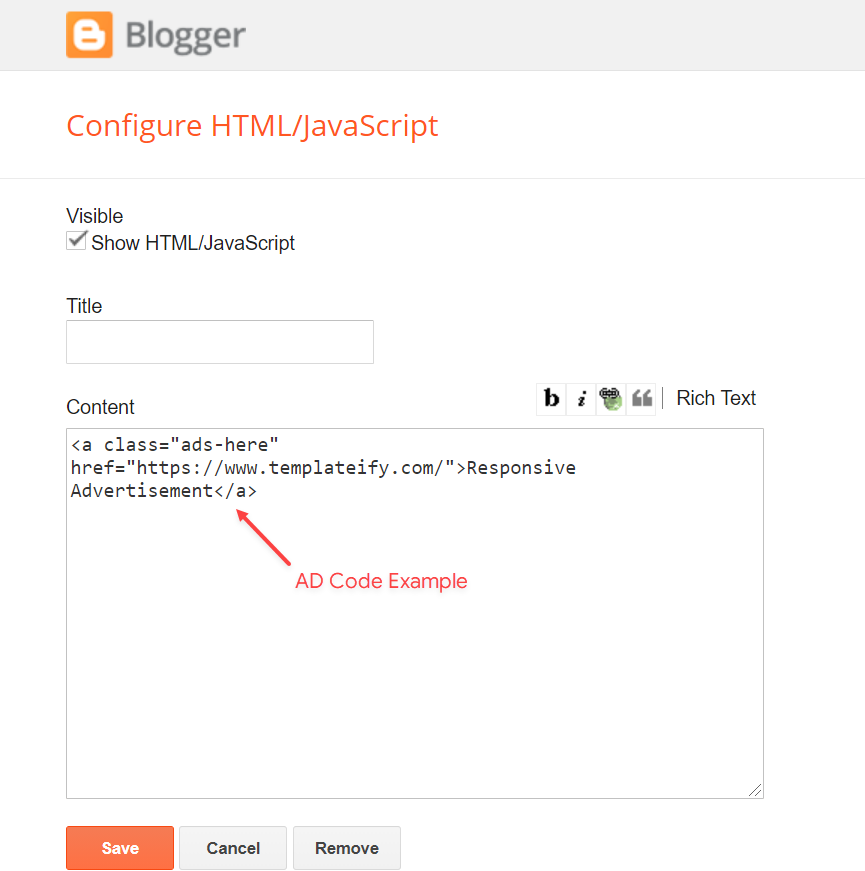
Access your blog Layout > and click on the Add a Gadget > HTML/JavaScript, Image or AdSense > in the sections Post ADS 1 ( before content ) and Post ADS 2 ( after content ).
HTML/JavaScript Example:
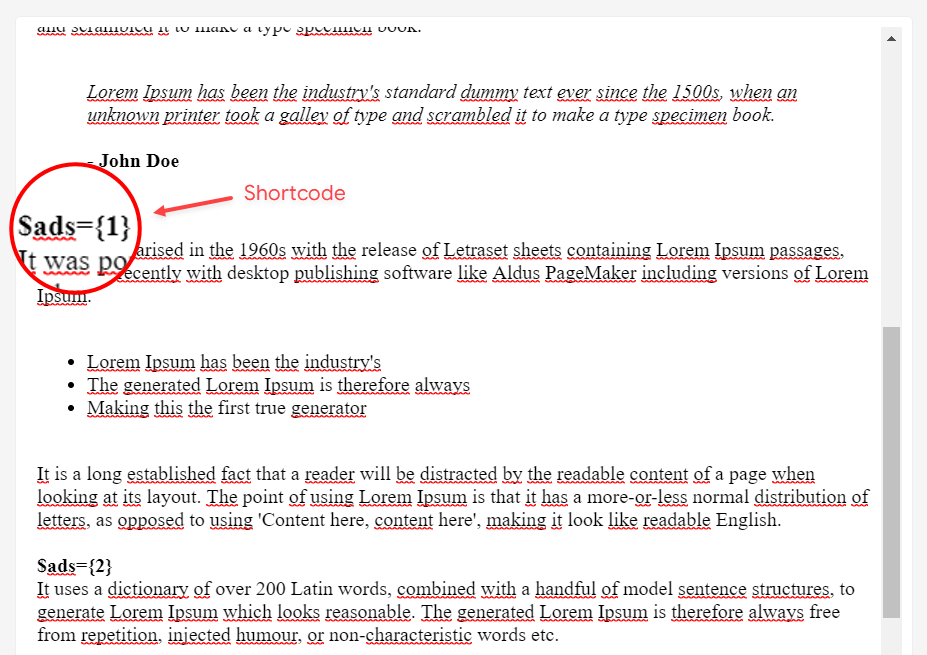
Move Post ADS 1 and Post ADS 2 to inside the post content:
Sortcode ADS 1: $ads={1}
Sortcode ADS 2: $ads={2}
NOTE: After adding a Shortcode apply the Bold style. Example: $ads={2}
Example:
IMPORTANT: The ad will only appear if you have inserted in the section, if you want to hide just remove check to not display or remove the gadget.
Author Box
The widget receives the blogger profile informations automatically, As long as your profile is marked as public. The icons are displayed if there are links in the introduction.
Supported Icons: blogger, apple, amazon, microsoft, facebook, facebook-f, twitter, rss, youtube, skype, stumbleupon, tumblr, vk, stack-overflow, github, linkedin, dribbble, soundcloud, behance, digg, instagram, pinterest, pinterest-p, twitch, steam, delicious, codepen, flipboard, reddit, whatsapp, telegram, messenger, snapchat, email, discord, quora, share, external-link
Blogger Settings: Go to https://www.blogger.com/edit-profile.g
Find for Additional Information > Introduction > and add your description with HTML links.
HTML Link: <a href="Your Link Here">Icon Name</a>
HTML Link Example: <a href="https://facebook.com/templateify">facebook</a>
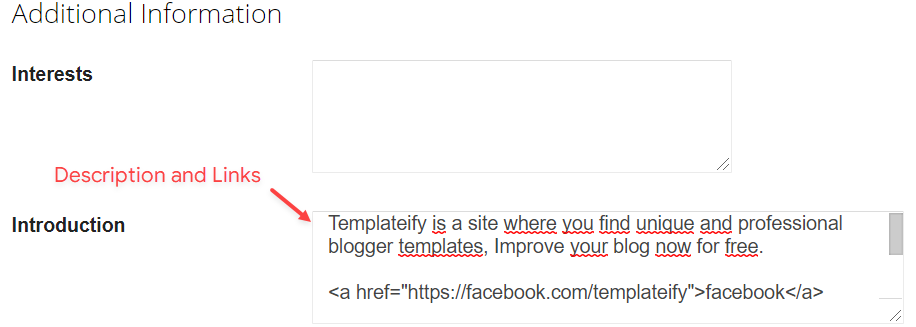
IMPORTANT: The "Introduction" is required for the author box to be displayed! But the links are not required.
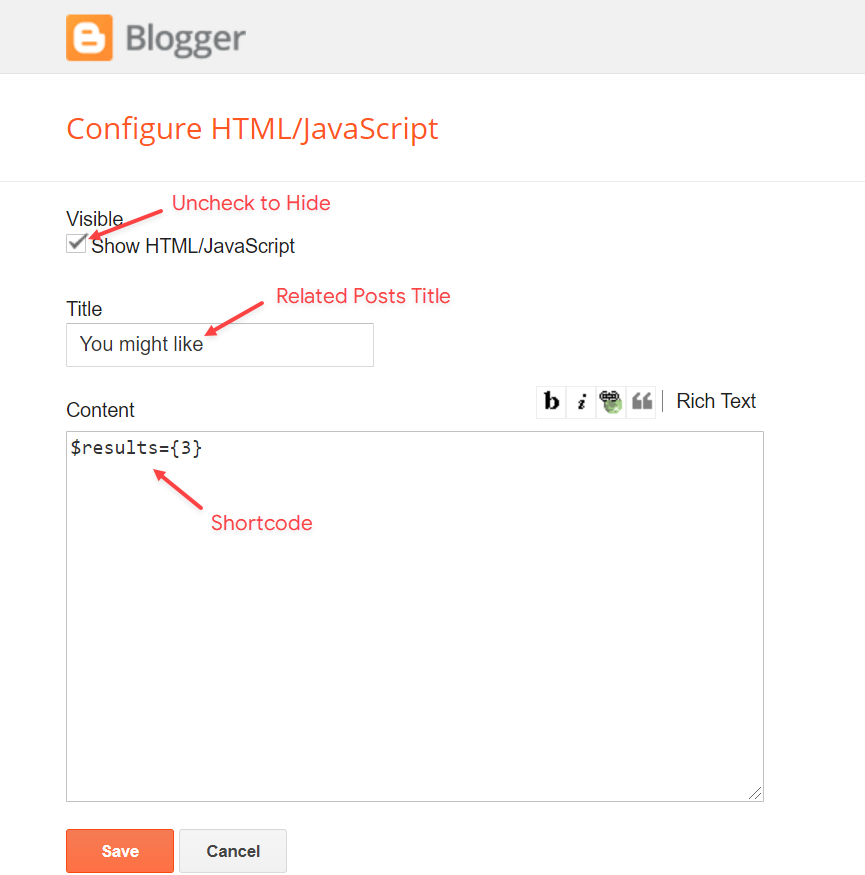
Advanced Related Posts
Access your blog Layout > and click on the Edit Icon > in the Related Posts gadget.
Shortcode: $results={Number of Results}
Shortcode Example: $results={3}
Widget Settings:
Post ADS 3
Access your blog Layout > and click on the Add a Gadget > HTML/JavaScript, Image or AdSense > in the section Post ADS 3.
HTML/JavaScript Example:
Post Widgets on Sidebar
Access your blog Layout > and click on the Add a Gadget > HTML/JavaScript > in the Sidebar section.
Shortcode: {getPosts} $results={Number of Results} $label={Your Label} $type={Custom Type} $style={Gadget Style}
Shortcode Results: You must add the desired number of results.
Shortcode Label: label or recent
Shortcode Types: posts, comments
Shortcode Example: {getPosts} $results={4} $label={Laptops} $type={post} $style={1}
NOTE: The $label={} attribute is not required for the comments type.
Widget Settings:

Footer ADS
Access your blog Layout > and click on the Add a Gadget > HTML/JavaScript, Image or AdSense > in the section Footer ADS.
HTML/JavaScript Example:
About Section
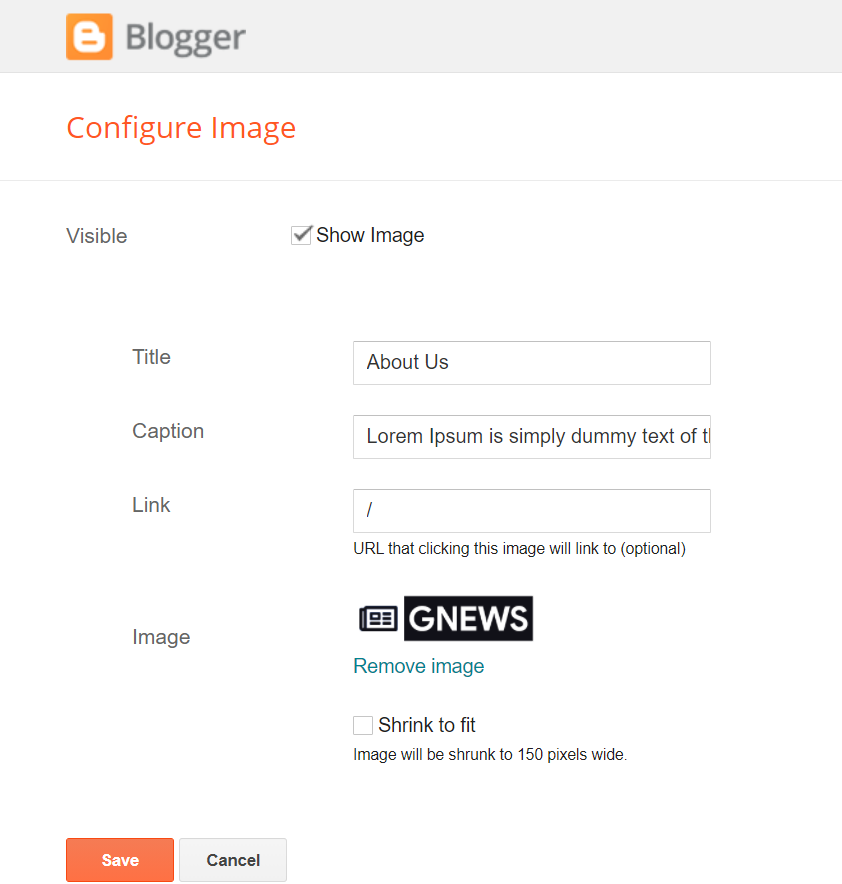
Access your blog Layout > and click on the Edit Icon > in the About Section gadgets.
1.1 - About Us
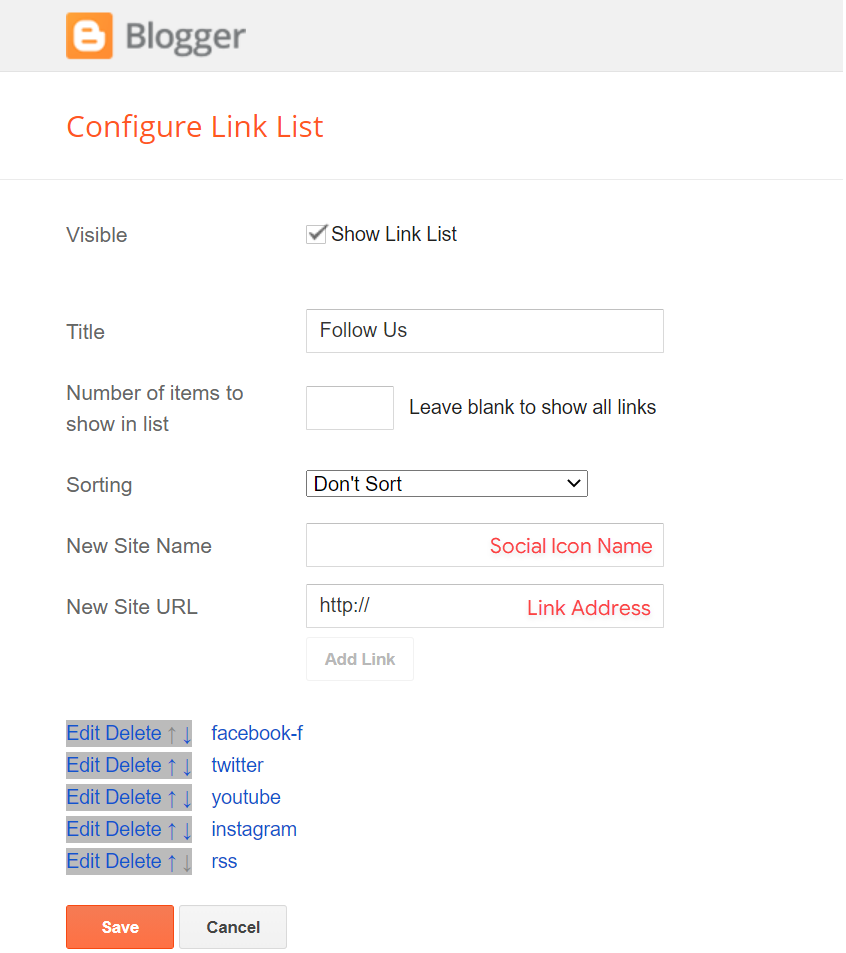
1.2 - Follow Us
Supported Icons: blogger, apple, amazon, microsoft, facebook, facebook-f, twitter, rss, youtube, skype, stumbleupon, tumblr, vk, stack-overflow, github, linkedin, dribbble, soundcloud, behance, digg, instagram, pinterest, pinterest-p, twitch, steam, delicious, codepen, flipboard, reddit, whatsapp, telegram, messenger, snapchat, email, discord, quora, share, external-link
Widget Settings:
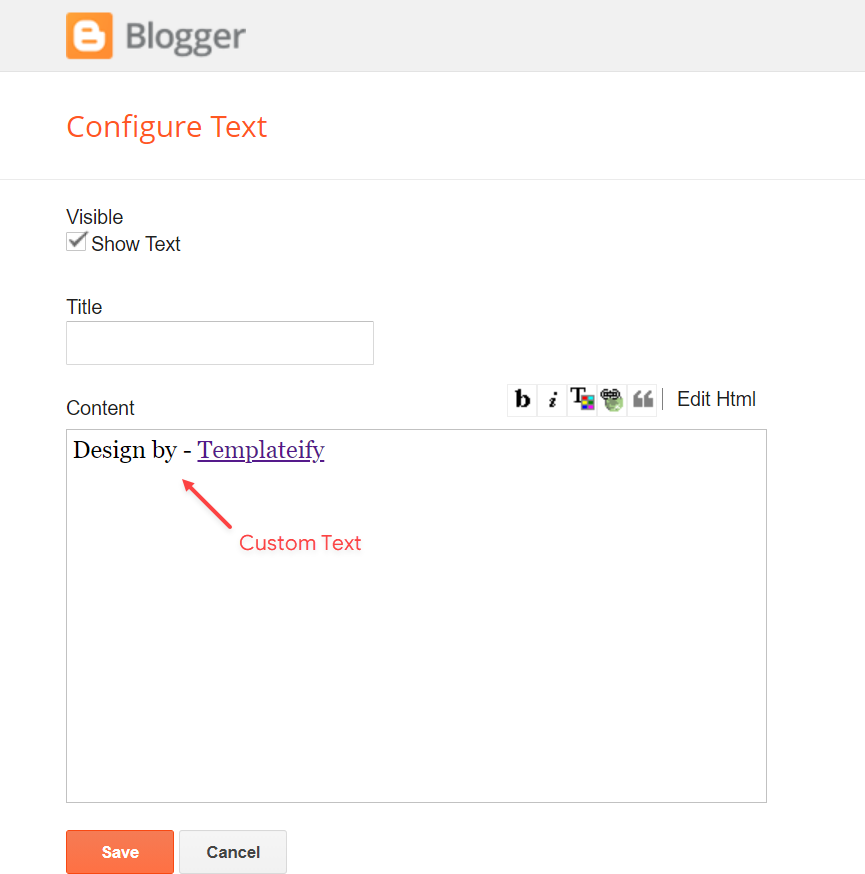
Footer Copyright (Premium)
Access your blog Layout > and click on the Edit Icon > in the Footer Copyright gadget.
For normal credits add 'normal' into the space for custom credits add your creadit as shown below.
Widget Settings:
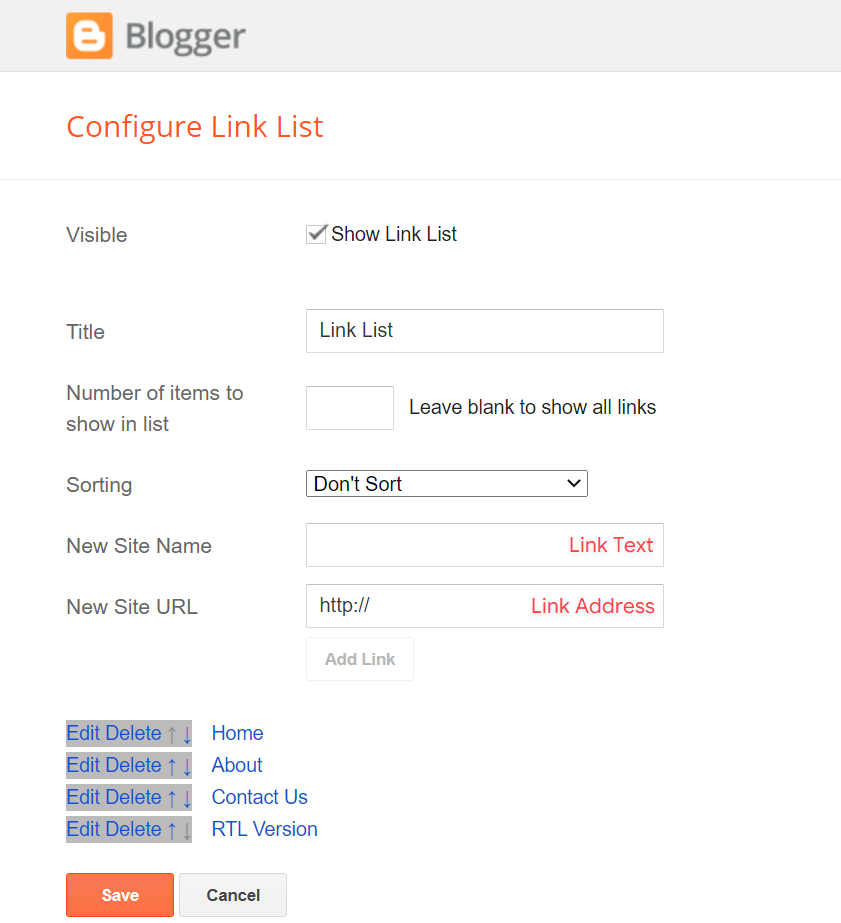
Footer Menu
Access your blog Layout > and click on the Edit Icon > in the Footer Menu gadget.
Widget Settings:
Cookie Consent
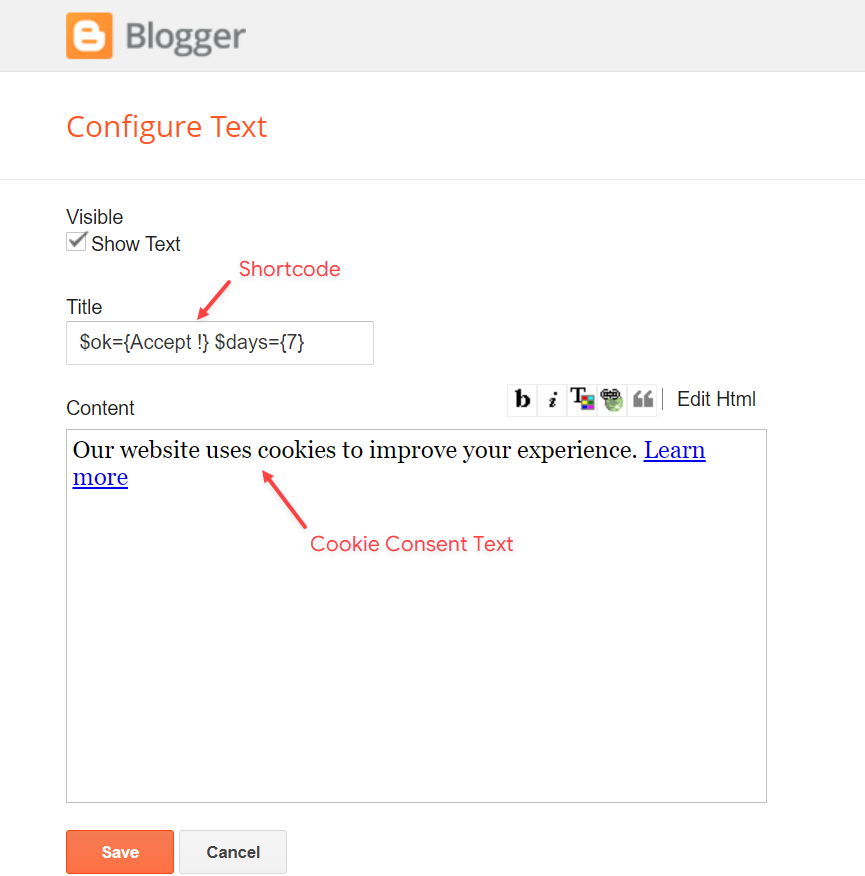
Access your blog Layout > and click on the Edit Icon > in the Cookie Consent gadget.
Shortcode: $ok={Button Text} $days={Expires Days}
Shortcode Example: $ok={Accept !} $days={7}
Widget Settings:
Theme Options
1.1 - Facebook SDK
The Facebook Comments only work if you have the Facebook SDK installed on your theme. See below for the steps to acquire and install the Facebook SDK.
Get SDK:
Step 01: Go to https://developers.facebook.com/docs/plugins/page-plugin/ and click on Get Code button and copy the SDK Script.
Copying SDK:
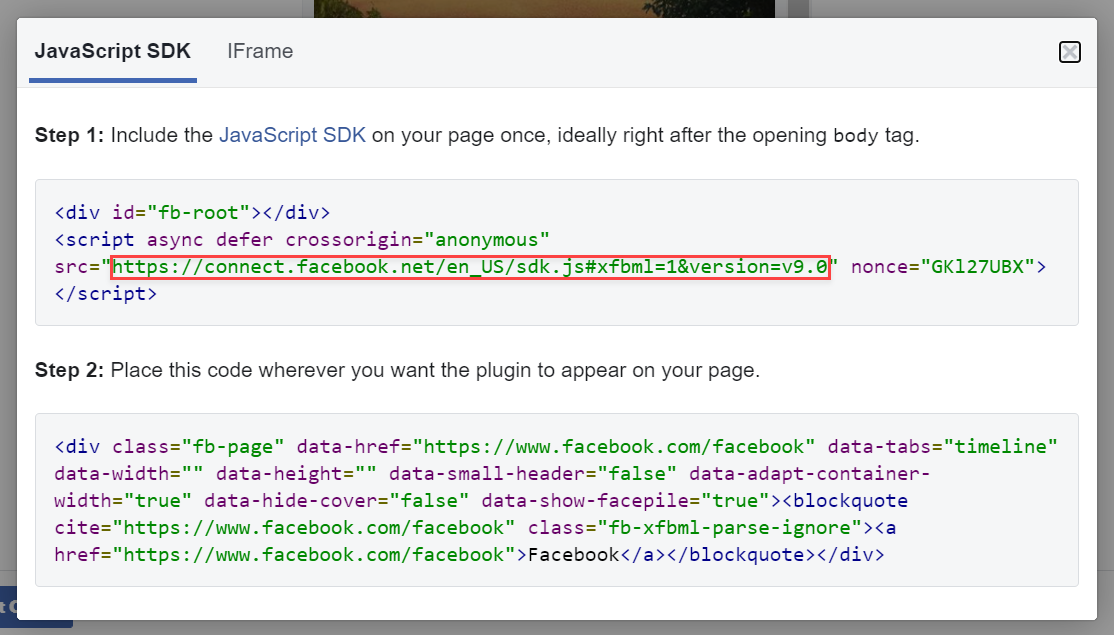
SDK en_US:
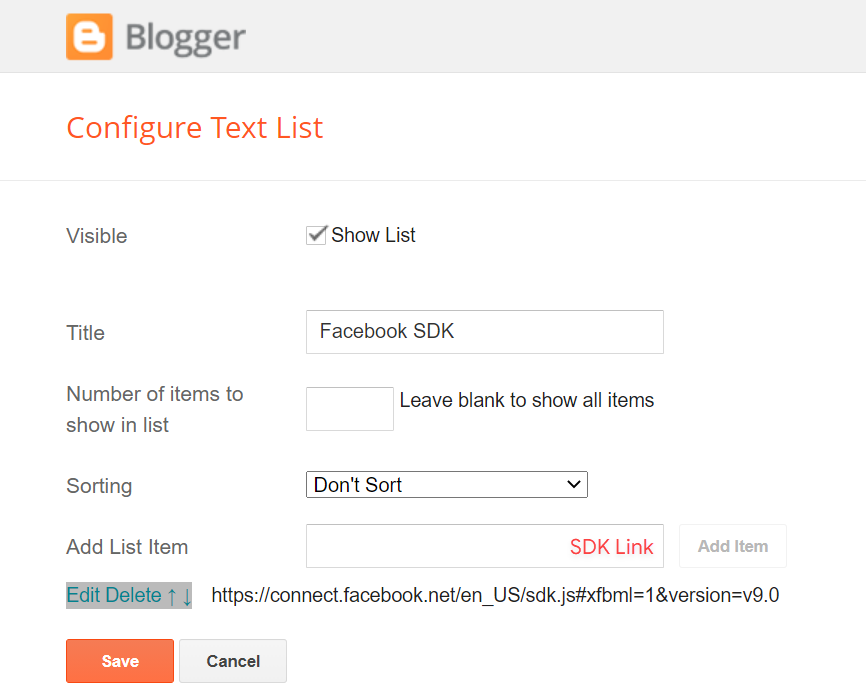
https://connect.facebook.net/en_US/sdk.js#xfbml=1&version=v9.0
Installing SDK:
Access your blog Layout > and click on the Edit Icon > in the Theme Options > Facebook SDK gadget.
Widget Settings:
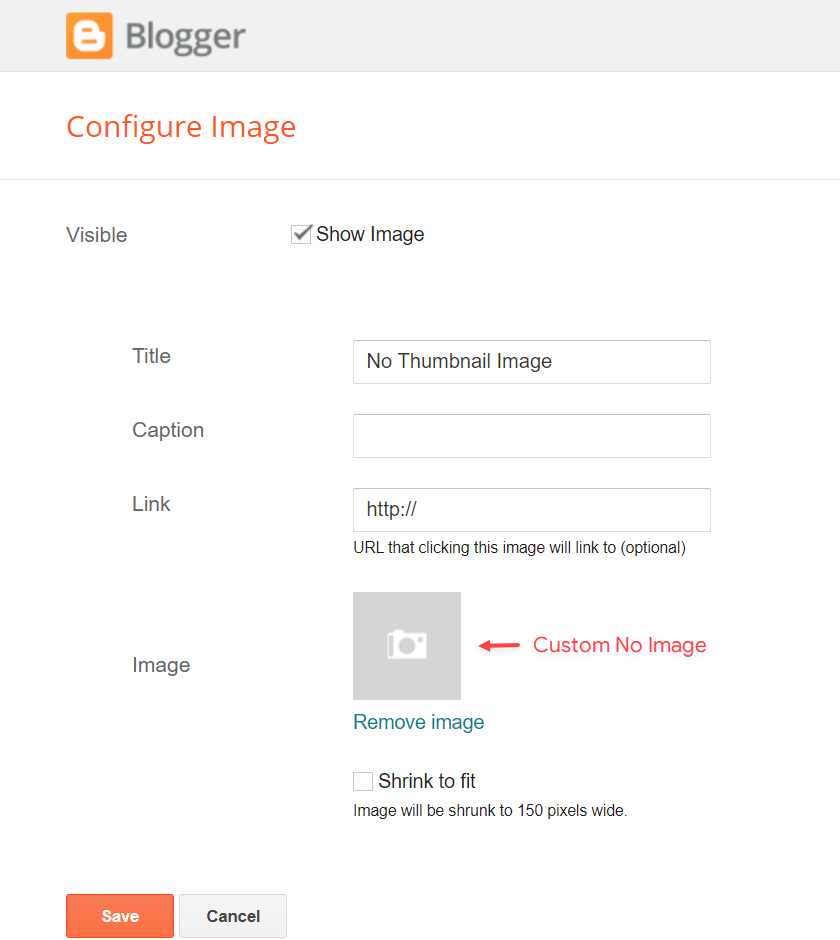
1.2 - Default Thumbnail
Access your blog Layout > and click on the Edit Icon > in the Theme Options > Defualt Thumbnail gadget.
Widget Settings:
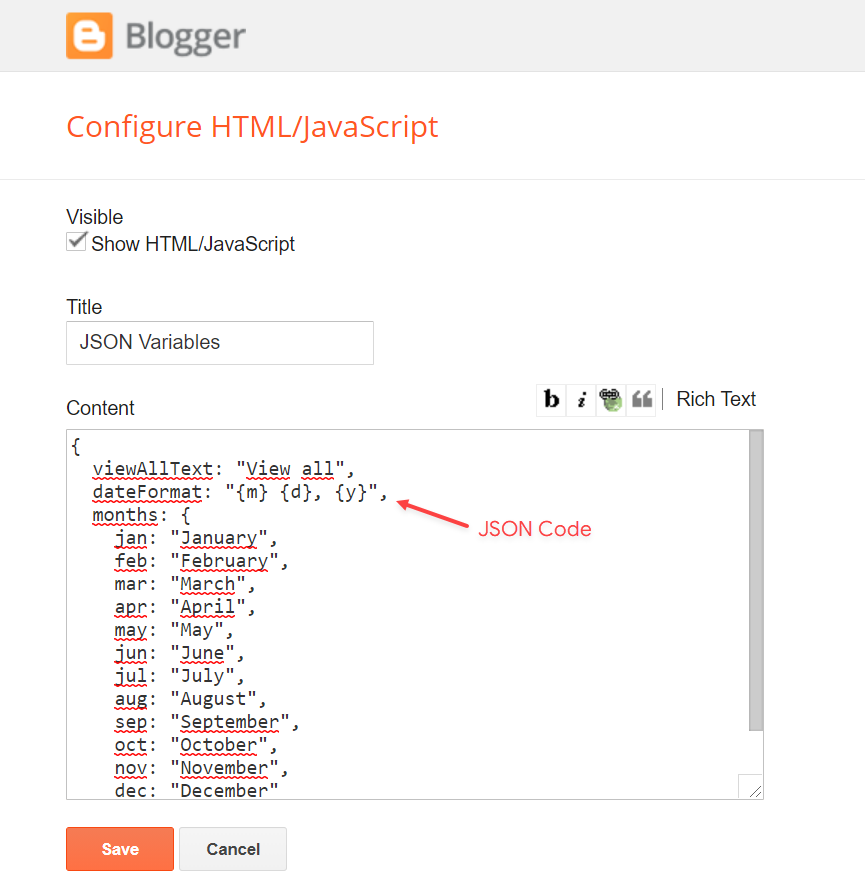
1.3 - JSON Variables
Access your blog Layout > and click on the Edit Icon > in the Theme Options > JSON Variables gadget.
{
  viewAllText: "View all",
  dateFormat: "{m} {d}, {y}",
  months: {
    jan: "January",
    feb: "February",
    mar: "March",
    apr: "April",
    may: "May",
    jun: "June",
    jul: "July",
    aug: "August",
    sep: "September",
    oct: "October",
    nov: "November",
    dec: "December"
  }
}
viewAllText: default is View all
dateFormat: default is {m} {d}, {y}
months: default is January, February, March, April, May, June, July, August, September, October, November, December
viewAllText: "View all",
dateFormat: "{m} {d}, {y}",
months: {
jan: "January",
feb: "February",
mar: "March",
apr: "April",
may: "May",
jun: "June",
jul: "July",
aug: "August",
sep: "September",
oct: "October",
nov: "November",
dec: "December"
}
}
Widget Settings:
IMPORTANT: This functionality is only valid for {getPosts} Gadgets and Related Posts. Other formats are changed in the blog settings.
How to Customize This Theme?
Access your blog Theme > and click on the Customize button > and find Background and Advanced options.
How to Customize This Theme?
Access your blog Theme > and click on the Customize button > and find Background and Advanced options.
Available customizations: Theme Options, Widths, Fonts, Backgrounds, Colors and more.
Background Example:

Advanced > Theme Options:
Native Dark Mode: 0 is false and 1 is true.

Left Sidebar: 0 is false and 1 is true.


Advanced > Theme Widths:
Boxed Mode: 0 is false and 1 is true.


Advanced > Theme Colors and Fonts:

INFO: When changing the font of the site and it has a blurred appearance, you can solve it by clicking to reset the fonts in the option Advanced > Theme Fonts (Reset).
Installation And Custom Services
We provide plenty of templates for free but if you want something unique for your blog then let us create a unique design for your blog, Just tell us your needs and we will convert your dream design into reality. We also Provide Blogger Template Installation Service. Our Installation service gives you a simple, quick and secure way of getting your template setup without hassle.
How To Setup Marketify Blogger Template [Templateify]
![How To Setup Marketify Blogger Template [Templateify]](https://blogger.googleusercontent.com/img/b/R29vZ2xl/AVvXsEi6g-73gJ_AVZSxec-UJHAuk3DPsStAgG3IgTOKyyOuA_1pJ-Cf0nwbmJEg1QG1mwb99nuDClAyfhva7LQKAX5qwY_DAYw63yB_0b8pDFKMRP2VRgCURg_bjiaGDtPc8WHBiRmop58gRV3uqR84Fmt-qtSAv2yqdl1L-Se0_HMm64yytH-cW8VVdfT_z2Pw/s72-c/Marketify%20Blogger%20Template.jpg) Reviewed by TemplatesYard
on
February 22, 2026
Rating:
Reviewed by TemplatesYard
on
February 22, 2026
Rating:
Reviewed by TemplatesYard
on
February 22, 2026
Rating:


No comments:
Post a Comment